
Manual - Zoom Embedded

Contents:
Zoom Embedded Phone Configuration
Notes
Configuration in Partner Portal
Configuration in Webconfigurator
Zoom Embedded Phone Configuration
Notes
- This integration requires the Zoom Bubble Connector to be configured.
- This integration only supports Zoom Phone.
- Requires the Zoom Workplace desktop client.
Configuration in Partner Portal
Authorization is performed organization-wide by a Zoom admin.
- Log in to the Bubble Webportal.
- Navigate to: My Account → Bubble → Phone Connectors → Zoom
- Click Authorize.
- You will be redirected to Zoom to approve the requested permissions.
- Approve the authorization request.
Once authorized, the users of that organisation can use the Zoom integration in Bubble.
If you encounter issues during authorization or configuration, refer to the FAQ section

Install the App
Authorization is performed on user basis.
You will be redirected to Zoom to approve the requested permissions.
- Go to the Zoom App Marketplace.
- Log in to your Zoom account.
- Search for Bubble365.
- Select it and click Add.
Once added, the app can be opened in the Zoom Client on the phone tab like this: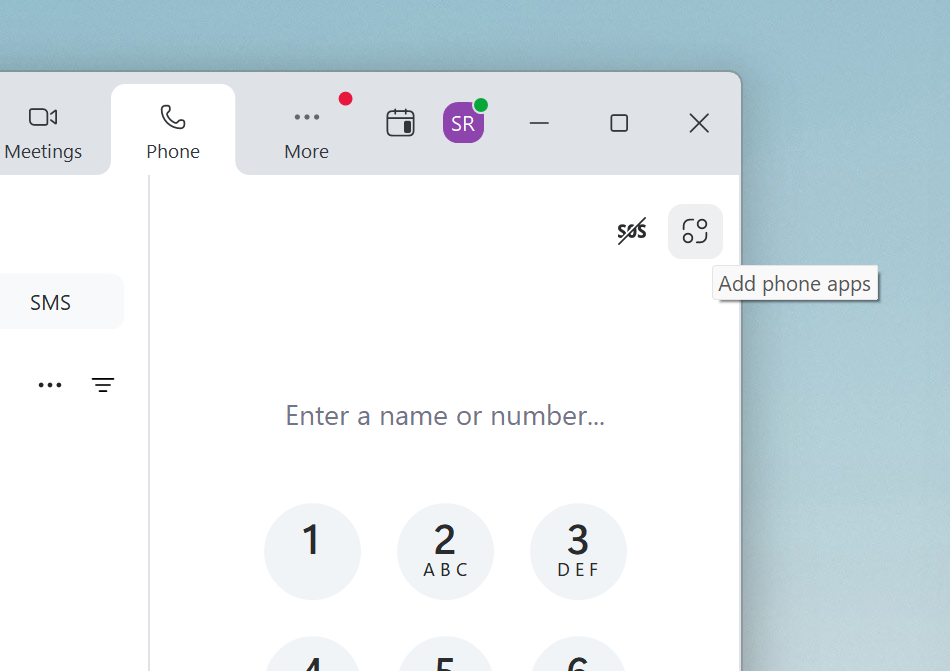
If you encounter issues during authorization or configuration, refer to the FAQ section
Configuration in Webconfigurator
In the Webconfigurator go to Phone Connectors and activate the Zoom phone connector by toggling the slider to the On position.
No additional authentication is required for end users.
The connector works automatically as long as:
- The Zoom app was authorized by an admin
- The Bubble user email matches the Zoom user email
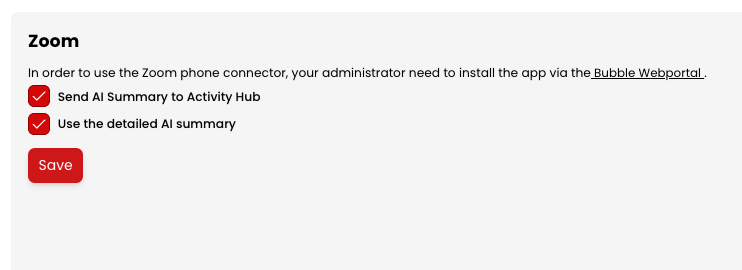
The following sections provide additional details for the Bubble Zoom integration:
Features
Pop-up type-
Fully embedded pop-up
Make use of the pop-up that is fully embedded in the platform itself.
-
Answer button
With call control you can directly answer a call via a button in the pop-up notification.
-
Hangup button
With call control you can directly end a call via a button in the pop-up notification.
-
Call initiation
Call initiation is supported by this integration. That means that you can easily start an outgoing telephone call with one mouse click (click to dial), dial button on your keybord (select to dial) or use the Bubble remote dialer and SearchBar.
-
Hold/Resume button
Easily put a call on hold during a call with a single mouse click
-
Cold transfer button
The cold transfer feature allows you to transfer the call directly to a phone number without a callback.
-
Attended transfer button
The warm transfer feature allows you to transfer the call to a call-back telephone number.
-
DTMF support
With DTMF support, you can press a key during a phone call via the Bubble and Bubble365 apps to make a selection in, for example, the menu on the other end of the line.
-
Supported via telephony platform
Transcriptions are generated by the telephony platform itself and written via Bubble into the connected CRM (if supported).
-
Inbound events
This allows Bubble to show data for incoming calls.
-
Outbound events
This allows Bubble to show data for outgoing calls.
-
Transfered events
Bubble also displays the data on transferred calls.
-
External number (inbound)
The $external_number parameter is available for inbound call events.
-
External number (outbound)
The $external_number parameter is available for outbound call events.
-
User based
This telephone system only supports user-level authentication, so that you have to authenticate per user who wants to use Bubble.
-
Clone template
A template must be used when cloning profiles because user authorization takes place, which cannot be cloned.
-
Contacts
Search through the contacts in your telephony environment from the 'SearchBar' desktop toolbar.From here you can open the customer card, start a phone call directly, send an email/WhatsApp/Microsoft Teams message or view the call history.
-
Bubble Desktop
bble is installed on each user/workstation and runs locally on the user's computer.
-
Bubble Cloud
Bubble is hosted in the cloud, so no local installation is required. Note: This option requires the Bubble Cloud add-on license. For cloud hosting, it is always necessary for our cloud IP addresses to have access to the CRM/telephony environment.
How to get support?
If you need help with the Bubble365 Zoom Embedded Integration, the information below explains how to contact support and access resources.
Contact your partner
For configuration, onboarding, and general support, please contact your certified Bubble partner.
Find partners here.
Documentation
Click here to view the Zoom Phone integration guide.
Need a Bubble license?
Request a free 30-day trial through one of our partners, the full list can be found here.
Contact supplier
For partners who would need to contact us:
Create ticket: https://www.redcactus.cloud/en/contact
Email: support@redcactus.cloud
Phone:
Dutch: +31113405065
English: +443302367088
Hours: Monday - Friday, 08:30 - 17:00 CET
First Response SLA: Within 3 business days
How to remove the app?
Removing the App
The Bubble365 Zoom Embedded App can be removed at any time by a user.
Remove from Zoom
- Log in to your Zoom account.
- Go to the Zoom App Marketplace.
- Navigate to Manage → Added Apps.
- Select Bubble365.
- Click Remove.
Implications of removal
- Bubble365 app is immediately removed
- Zoom Phone events are no longer sent to Bubble365.
Data handling after removal
- Bubble365 does not store Zoom call data or recordings.
How to use the app?
Prerequisites
- Zoom Phone enabled on the Zoom account
- Zoom Connector is installed and configured
- Zoom user email matches the Bubble user email
- Zoom Workplace client is installed
Overview
When the Zoom Connector is installed and configured, Bubble receives Zoom Phone call events and enriches them with data from an enabled CRM connector. This is then send to the Bubble365 embedded app in Zoom Workplace.
Incoming & Outgoing Call Identification
When a user makes or receives a Zoom Phone call, Bubble365 in Zoom shows the related customer information from the connected CRM. This allows the user to immediately see who is calling.
CRM Interaction During a Call
During an active call, users can interact with CRM-related actions directly from Bubble365.
- Users can navigate to the customer record
- Custom buttons can be used to:
- Create callback notes
- Trigger CRM-related actions
- Actions are linked to the active call context
- Want to know what is available for your specific CRM? See the Marketplace
Call Notes and CRM Logging
Users can write call notes during a call and automatically store them in the connected CRM once the call ends.
AI Transcription Handling
If Zoom AI transcriptions are enabled, call transcriptions can be reviewed and adjusted in Bubble before being sent to the CRM.
Can I check if the call events are coming through?
Yes, you can! In the Bubble software you can check under Phone Connectors if the call events are coming through. This is also an extra way of checking whether you have done the configuration correctly...Log in when you want to read this article
This article is providing information to users of our software. Information that contains things like, how to install our software, how to use certain options and more. If you want to read this article, you will have to log in with your Red Cactus account.
Contents :
1. Phone connector not active
2. Missing internal numbers/extensions
3. Connection blocked by firewall
4. No call events
Why doesn’t the call popup appear for incoming or outgoing calls?
If the call popup does not appear for an incoming or outgoing call – whether directly or through a call group – this can have several causes: 1. Phone connector not active Check if the phone connector...Log in when you want to read this article
This article is providing information to users of our software. Information that contains things like, how to install our software, how to use certain options and more. If you want to read this article, you will have to log in with your Red Cactus account.